Text Enhancer
Improve clarity, tone, and flow with an AI text quality enhancer
How to Use the Text Enhancer
Improve text quality in 3 simple steps
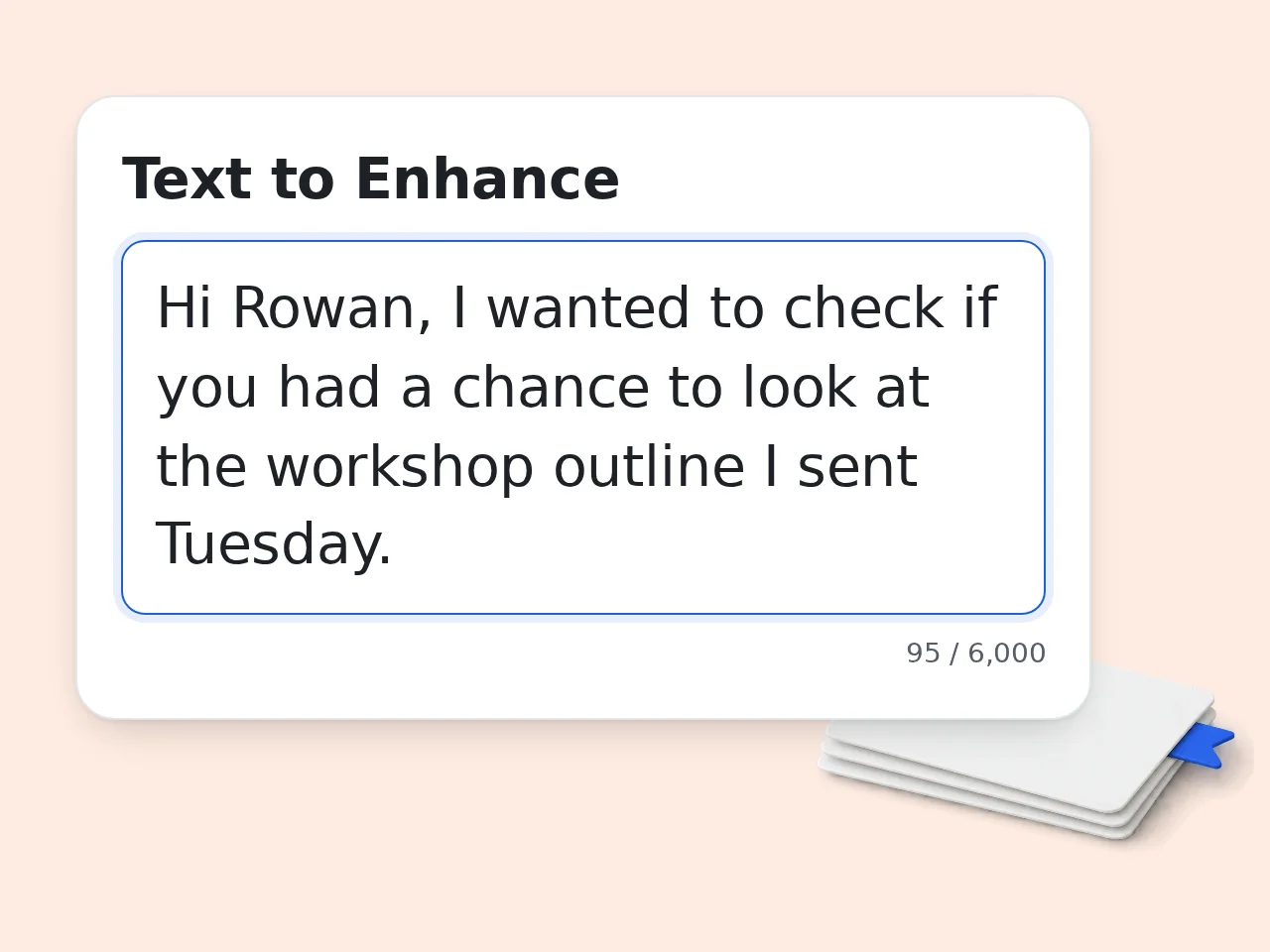
Paste the text you want enhanced
Add a sentence, paragraph, email, essay, or rough draft. The text enhancer works best when the original meaning is already present.
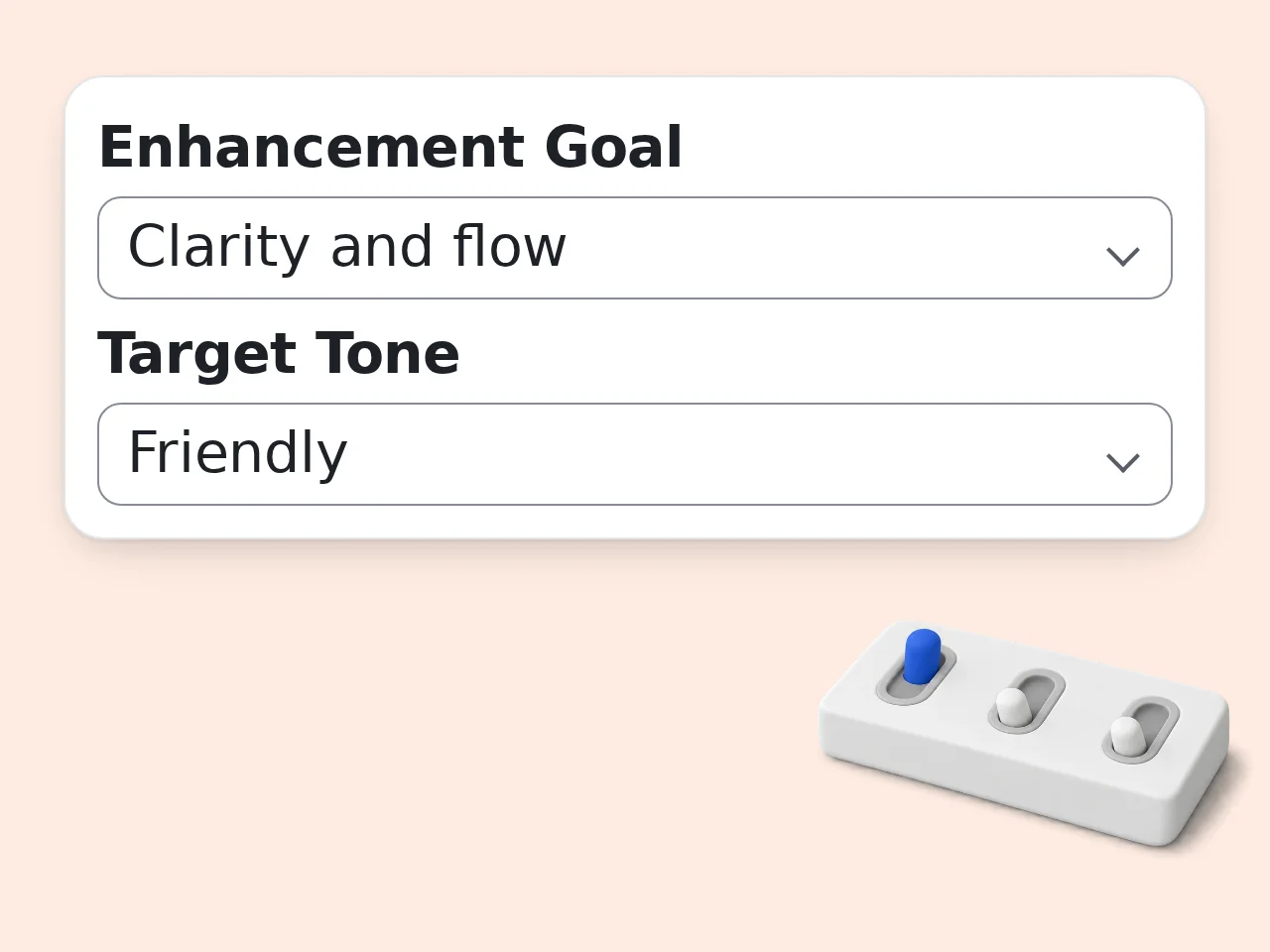
Choose goal, tone, and audience
Pick the enhancement goal and target tone. Add audience or length settings if the writing needs a specific use case.
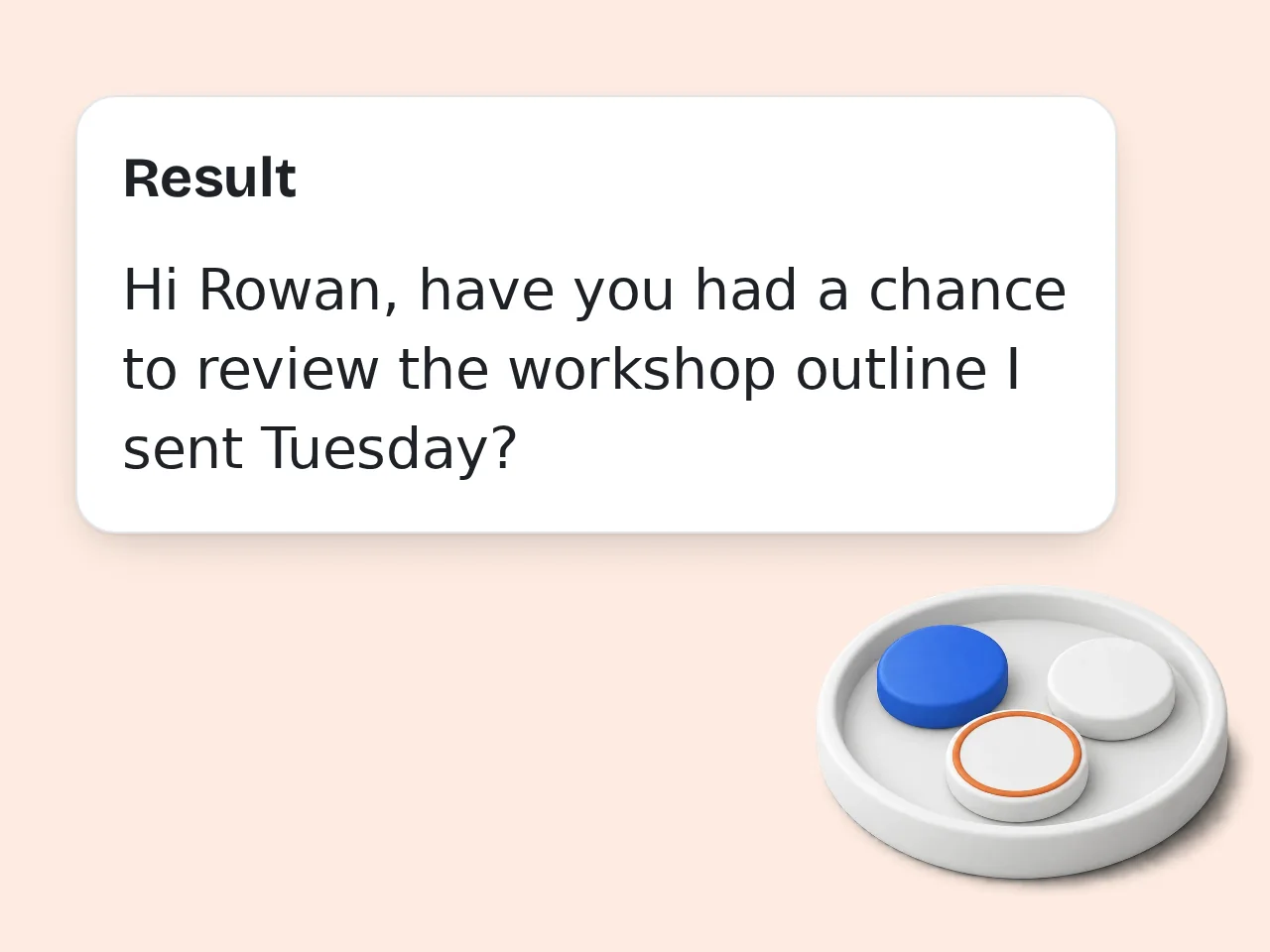
Generate polished text
Review the enhanced text, read the short edit notes, then copy the version that fits your purpose.

Key Features of Text Enhancer
Everything needed to turn rough writing into clear text
Goal-Based Text Enhancement
Choose clarity, grammar polish, professional rewrite, simplification, or engagement so the text enhancer knows exactly how to improve your draft.
Tone and Audience Controls
Set a natural, professional, academic, friendly, or persuasive tone and tell the text quality enhancer who will read the final version.
Meaning-Preserving Rewrite
Improve weak wording without changing names, facts, numbers, or the core message. Add notes for terms that must stay untouched.
Frequently Asked Questions about Text Enhancer
Common questions about text quality enhancer tools
What is a text enhancer and how does it work?
A text enhancer is an AI writing helper that improves rough text by fixing clarity, grammar, flow, tone, and word choice while keeping the original meaning intact. You paste a sentence, paragraph, email, or draft, then choose the goal and tone. The text enhancer reviews the writing, rewrites awkward parts, and returns a polished version. Use it when the idea is right but the wording needs cleaner structure, smoother transitions, or stronger impact.
How do I use this text enhancer for best results?
Paste the text you want to improve, choose an enhancement goal, select a target tone, and add any notes the text enhancer should follow. Specific input gives better output. Mention the audience, where the text will be used, and whether it should stay short, sound professional, or become easier to understand. If the first result feels close but not perfect, regenerate with a clearer note such as “make it warmer” or “keep it concise.”
Is this text enhancer free to use?
Yes, this text enhancer is free to try. Guests get limited daily free tries, free registered users have a monthly credit allowance, and subscribers can use higher limits. The core writing enhancer settings are available without writing a complicated prompt. You can paste text, pick the goal, and generate a polished version quickly. For regular editing work, signing in helps keep access more predictable across longer documents and repeated rewrites. See the pricing page for current details.
How many times can I use the text enhancer per day?
Guests get limited daily free tries with the text enhancer without creating an account. Free registered users have a monthly credit allowance, while subscribers get higher limits. Each generation can handle a useful amount of text, so one request can often polish a full email, paragraph set, or short article section. If you need many revisions in a day, combine related paragraphs before generating to use the limit efficiently. See the pricing page for current details.
Can I use the text enhancer without creating an account?
Yes, you can use the text enhancer without an account for quick writing improvements. Guest access is designed for small edits, short messages, and occasional rewriting. Creating a free account gives more monthly usage and makes it easier to work on repeated drafts. If you only need to polish one email, caption, or paragraph, guest access is usually enough. For ongoing writing, a free account removes much of the friction.
What can I use a text enhancer for?
A text enhancer can improve emails, essays, reports, social posts, website copy, product descriptions, support replies, resumes, cover letters, and everyday messages. It is most useful when the meaning is present but the writing feels unclear, too casual, too stiff, or too wordy. Choose professional tone for work, friendly tone for messages, and academic tone for school writing. The same draft can be enhanced in several ways depending on the audience.
Does the text enhancer support different tones?
Yes, the text enhancer supports natural, professional, academic, friendly, and persuasive tones. Tone control changes the rhythm, word choice, formality, and sentence structure of the rewritten text. A professional tone can make an email more polished, while a friendly tone can make a message warmer and easier to read. Add notes if you need a brand voice, softer wording, stronger confidence, or less formal phrasing.
What kind of output quality should I expect?
You should expect cleaner, more readable text that keeps your original point. The text quality enhancer fixes awkward phrasing, improves sentence flow, reduces repetition, and makes the message easier to understand. It works best when the input has enough context and a clear purpose. It will not verify facts or invent missing information. For important documents, review names, numbers, claims, and legal or academic requirements before using the final version.
Why use a text enhancer instead of editing manually?
Manual editing gives full control, but a text enhancer is faster when you already know what you want to say and need better wording. It can spot wordiness, uneven tone, weak transitions, and grammar issues in seconds. That makes it useful for routine emails, drafts, and second-language writing. You can still make the final judgment, but the tool gives a stronger starting point than staring at the same sentence repeatedly.
Why use this text enhancer instead of asking ChatGPT?
A dedicated text enhancer gives structure before generation. Instead of writing a long prompt, you choose the text, goal, tone, audience, and length from clear fields. That reduces prompt work and keeps the output focused on rewriting. General chat tools can do the same task if prompted well, but this writing enhancer is faster for repeat editing. It is especially useful when you want consistent results across many small pieces of text.
How can I get better results from the text enhancer?
Give the text enhancer enough context and choose the goal carefully. A rough paragraph plus a note like “make this clearer for a client email” works better than pasting text with no direction. Keep important names, terms, or claims in the original so they are preserved. If the output sounds too formal, select a friendlier tone or add a note asking for plain, natural language. Small instructions often improve the rewrite a lot.
Can the text enhancer simplify difficult writing?
Yes, the text enhancer can simplify difficult writing while keeping the key meaning. Choose the simplify goal when the original text has long sentences, dense wording, jargon, or confusing structure. The output can break ideas into clearer sentences and replace hard wording with plain language. This is useful for study notes, workplace explanations, support replies, and public-facing content. For technical topics, include any terms that must stay unchanged.
Still have questions?
Contact our support teamReady to Improve Your Text?
Paste your draft and get a clearer version in seconds.