Discussion Response Generator
Write thoughtful class forum replies from any discussion post.
How to Use Discussion Response Generator
Get a reply in 3 simple steps
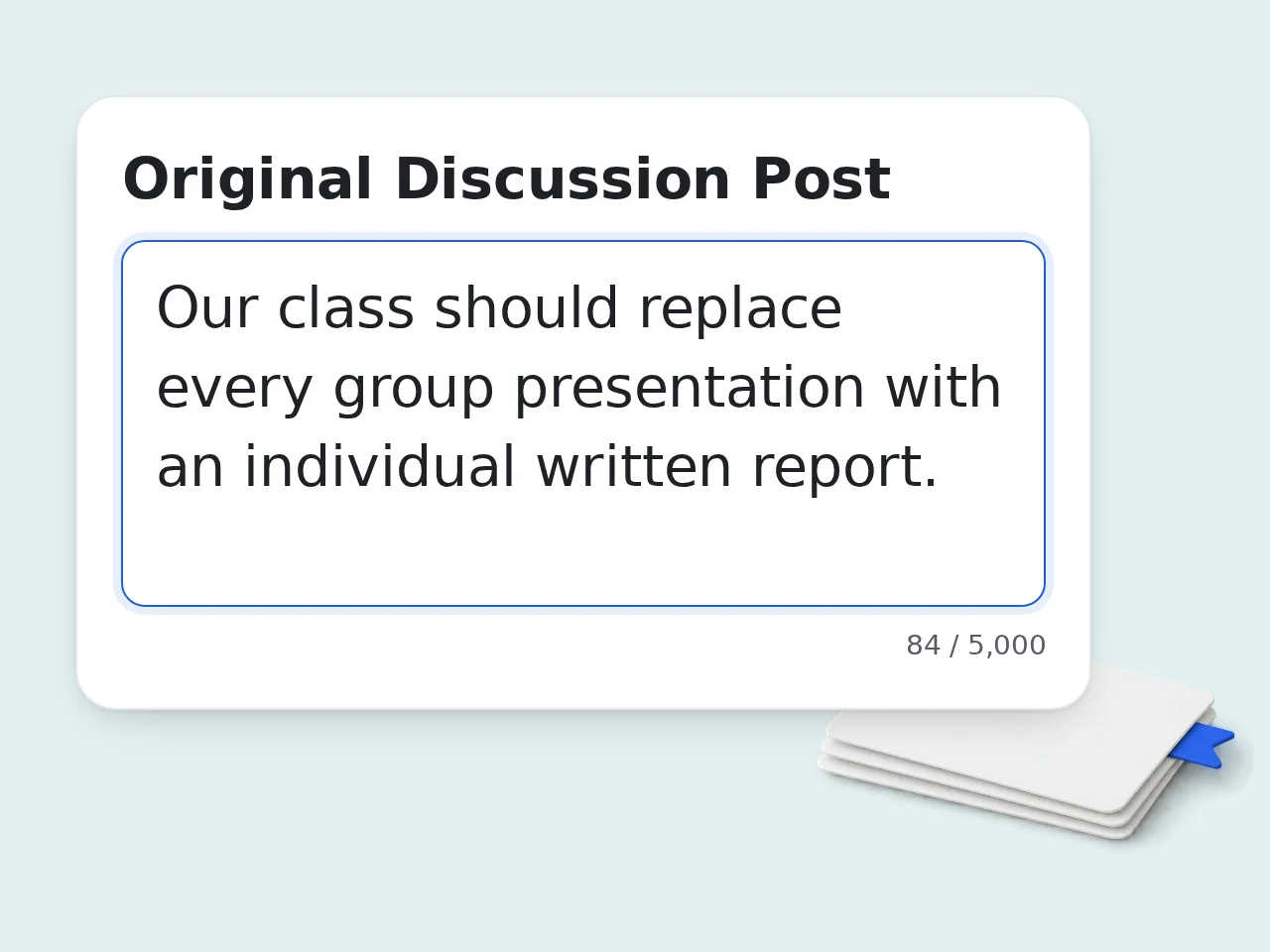
Paste the post
Add the classmate post, forum message, or discussion-board comment you need to answer.
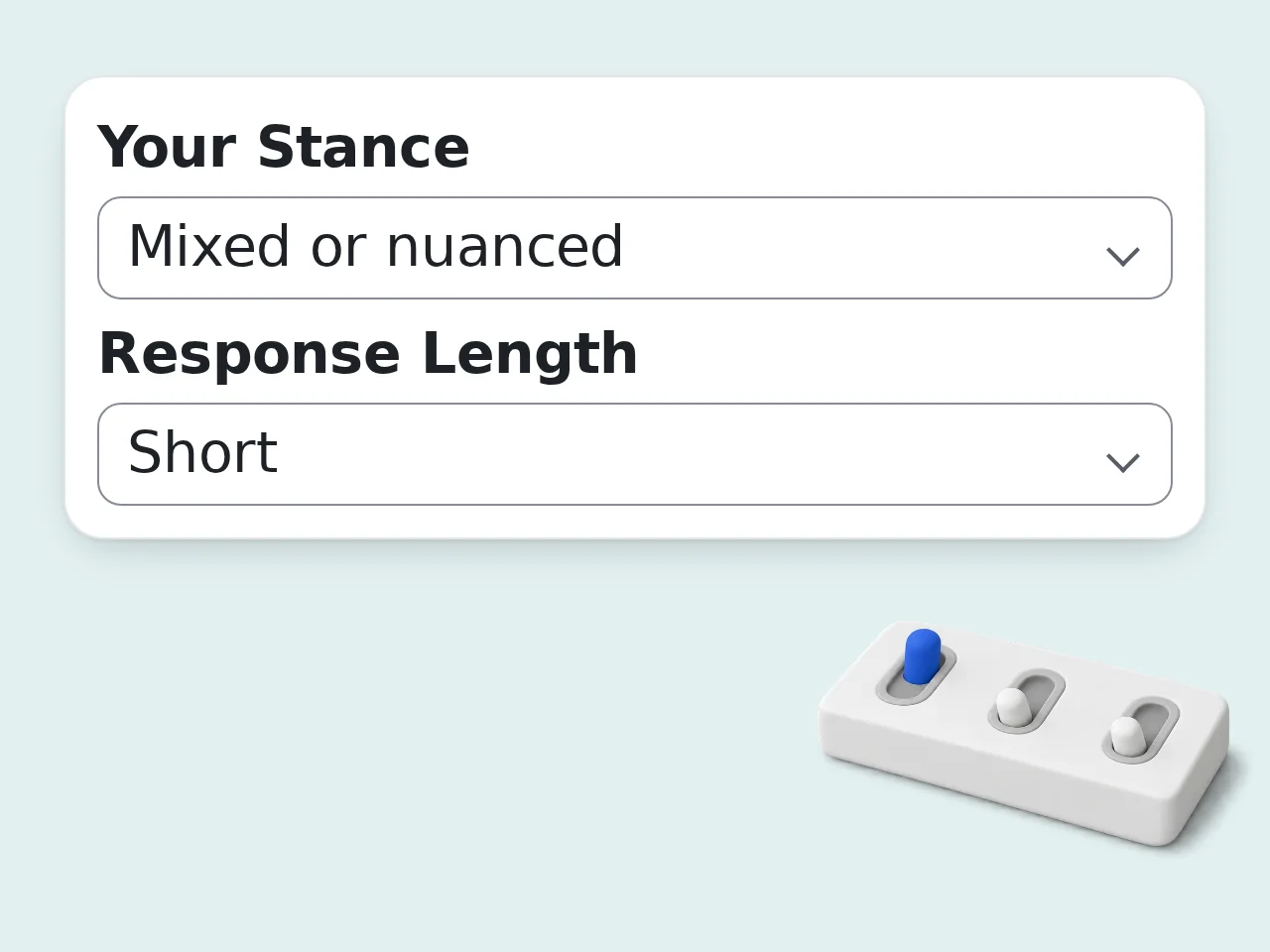
Set requirements
Choose stance, length, tone, evidence use, citation style, and whether to add a follow-up question.
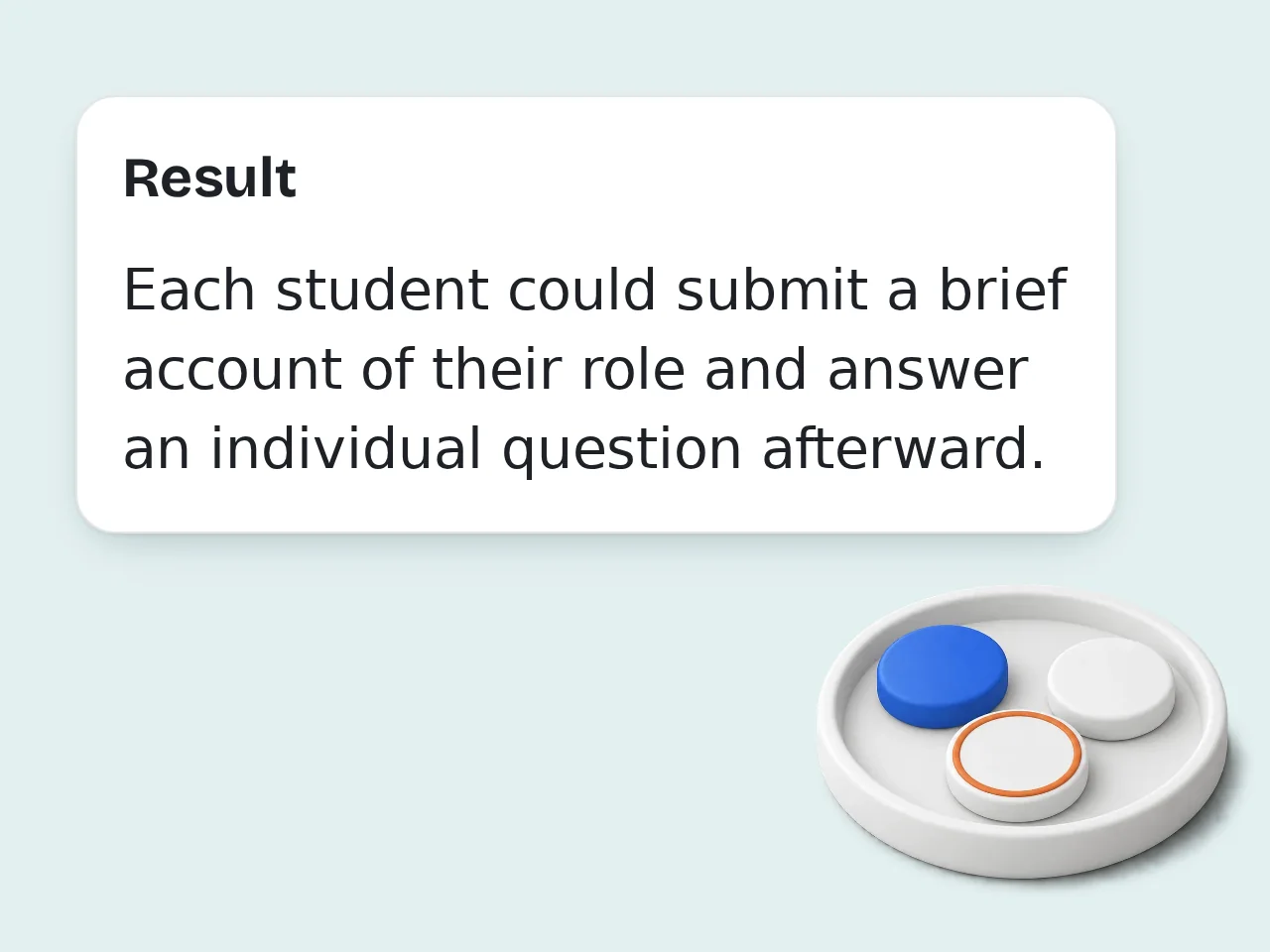
Edit before posting
Review the draft, add personal details or course-specific ideas, and then post your final response.
Key Features of Discussion Response Generator
Everything you need for stronger discussion replies
Stance-aware replies
Agree, disagree, add nuance, or ask for clarification while keeping the reply respectful.
Class-ready structure
Turn a peer post into a clear response with acknowledgement, reasoning, optional evidence, and a follow-up question.
No fake citations
Use provided readings or avoid citations entirely, so the draft stays honest and easy to verify.
Frequently Asked Questions about Discussion Response Generator
Common questions before writing a discussion reply
What is a discussion response generator?
A discussion response generator helps you write a thoughtful reply to a classmate, coworker, or forum post. It reads the original message, identifies the main point, and drafts a response that acknowledges the author while adding your own idea, evidence, or question. For best results, include the audience, purpose, and one concrete detail so the discussion response generator can shape the draft around a real situation instead of a generic prompt.
How do I use this discussion response generator?
Paste the original discussion post, add any assignment requirements, then choose your stance, length, tone, and evidence settings. The discussion response generator will create a draft you can revise before posting to a class board, training forum, or online community. A focused prompt also makes editing easier because you can judge whether the output matches the tone, length, and use case you had in mind.
Can it write replies for school discussion boards?
Yes. The tool is designed for school discussion boards, especially when you need to reply to peers in a respectful academic tone. Add the prompt, rubric, reading notes, or required word count so the response matches your course expectations. If the first result feels broad, regenerate with a narrower angle, a clearer format, or one phrase that absolutely needs to appear.
Will the response sound natural?
The generator aims for a natural peer-response style instead of generic praise. It can agree, disagree, add nuance, connect to a reading, and end with a follow-up question. You should still edit names, examples, and personal details before submitting. You can treat the first draft as raw material, then keep the strongest lines and remove anything that sounds too polished or too vague.
Can it disagree with a post politely?
Yes. Choose the respectful disagreement or mixed stance option. The tool will acknowledge a valid part of the original post, explain the point of disagreement, and keep the wording focused on ideas rather than attacking the person who wrote the post. This is especially useful when you need a starting point quickly but still want the final wording to sound like you.
Does it create citations automatically?
No. It will not invent citations, authors, page numbers, or references. If you provide source details in the requirements field, it can use them carefully. If you do not provide source details, it can mention readings generally or avoid citations entirely. The tool works best when you add context before generating and review the result before copying it into a real post, class reply, song, or profile.
What should I paste into the original post box?
Paste the message you need to answer. It can be a classmate discussion post, forum comment, training-board answer, or professional community thread. The more complete the original post is, the better the generated discussion response will be. Small edits after generation usually make the biggest difference: adjust names, examples, transitions, and any line that feels off.
Can I control the length of the response?
Yes. You can choose a short, medium, or long response. Short replies work for quick peer comments, medium replies fit most class boards, and long replies are better when the rubric asks for deeper analysis or more developed evidence. If you are comparing several versions, save the best parts from each one and combine them into a cleaner final draft.
Can it add a follow-up question?
Yes. A follow-up question is useful when your instructor expects replies that continue the conversation. The tool can end with one open-ended question that connects to the original post instead of adding a random or generic question. The goal is not to accept every sentence automatically; use the output as a structured shortcut for faster writing.
Is this only for students?
No. Students are the most common users, but the same structure works for workplace learning platforms, professional forums, product communities, and moderated online discussions. The tone controls help make the response academic, professional, or conversational. Clear inputs, practical settings, and a quick human edit will usually produce a much stronger final result than a one-word prompt.
How can I make the output better?
Add the assignment prompt, required word count, course topic, reading notes, and your real position. A discussion response generator works best when it has context. After generation, replace broad statements with personal examples or course-specific ideas. You can also rerun the same idea with a different tone when the first version is accurate but not quite the right voice.
Can I submit the generated response as is?
You should treat it as a draft. Read it carefully, check your course rules, verify any source references, and add your own voice. The safest use is to generate structure and wording, then revise before posting or submitting. Before publishing or submitting, read the draft once from the audience's point of view and tighten anything that could be misunderstood.
Still have questions?
Contact our support teamTry Discussion Response Generator Now
Create a thoughtful discussion reply from any post in seconds.