Bullet Point Maker
Turn paragraphs into clear bullet points, fast
How to Use the Bullet Point Maker
Create polished bullet points in 3 simple steps
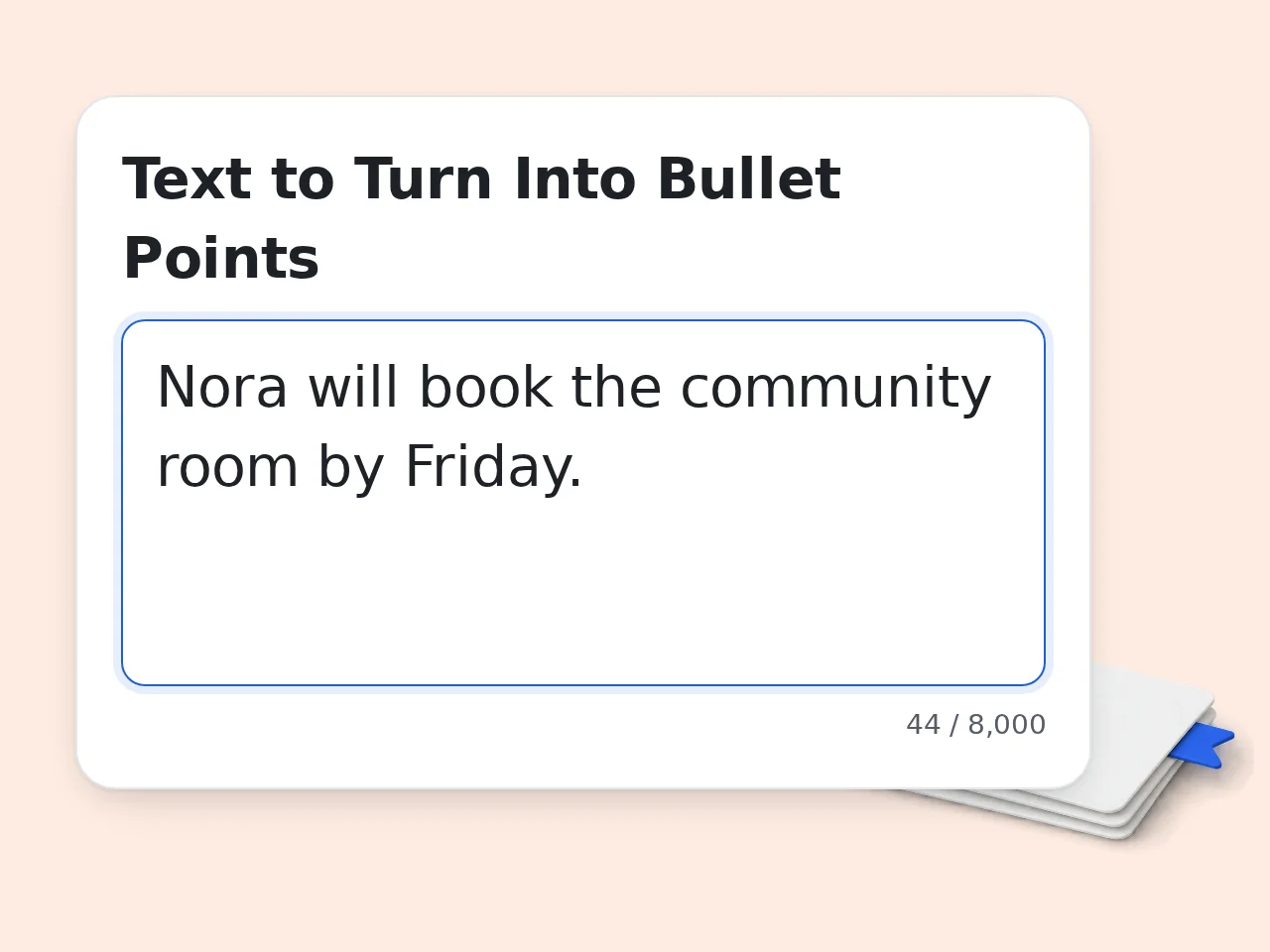
Paste the text you want to simplify
Drop in a paragraph, rough notes, meeting recap, product description, or any text that feels too dense. The bullet point maker works best when the source text already includes the facts you want to keep.
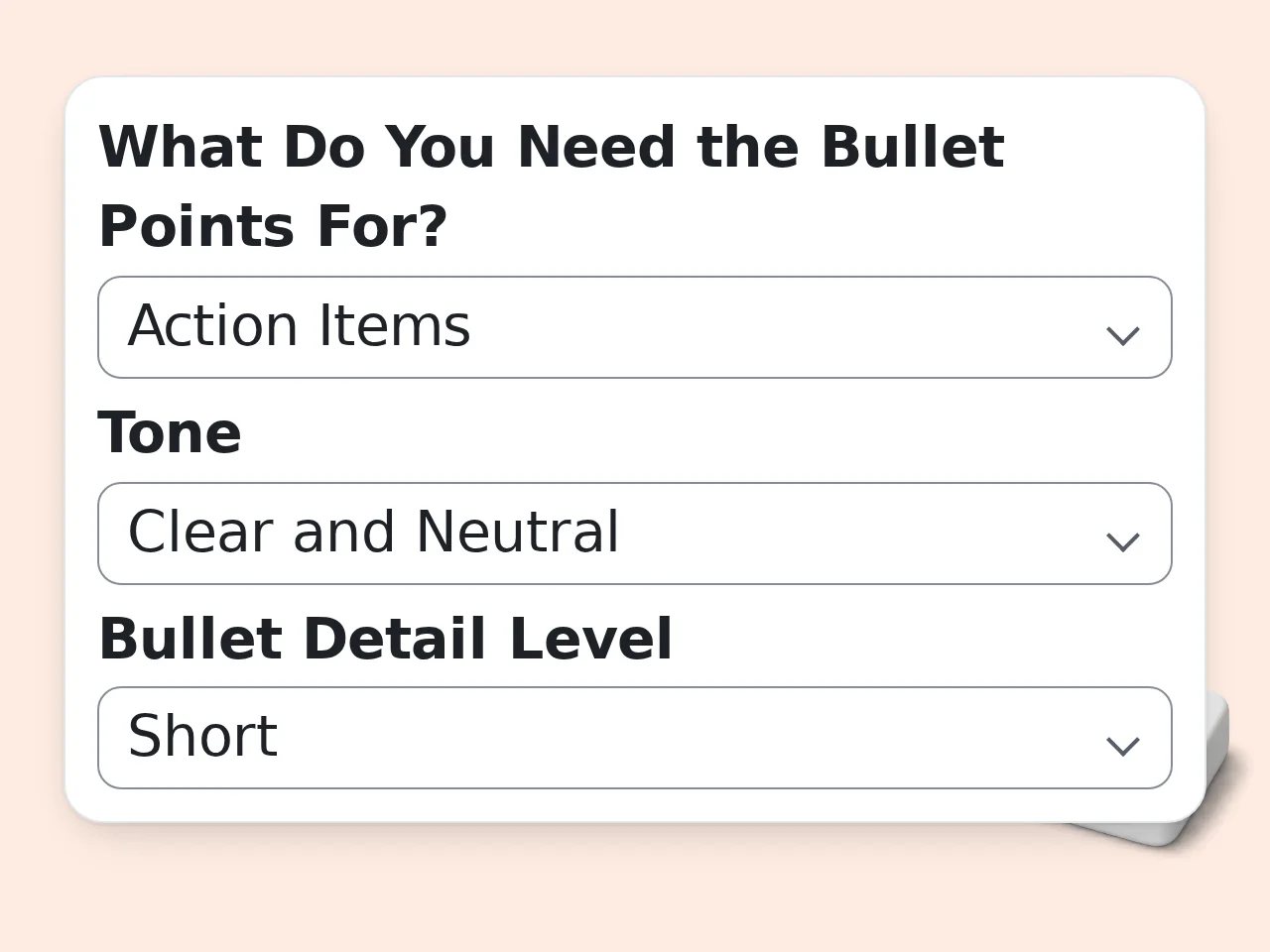
Choose the goal, tone, and bullet style
Pick whether the bullet points are for a summary, slide, resume, meeting note, or action list. Then set the tone, detail level, and optional focus so the result matches your exact use case.
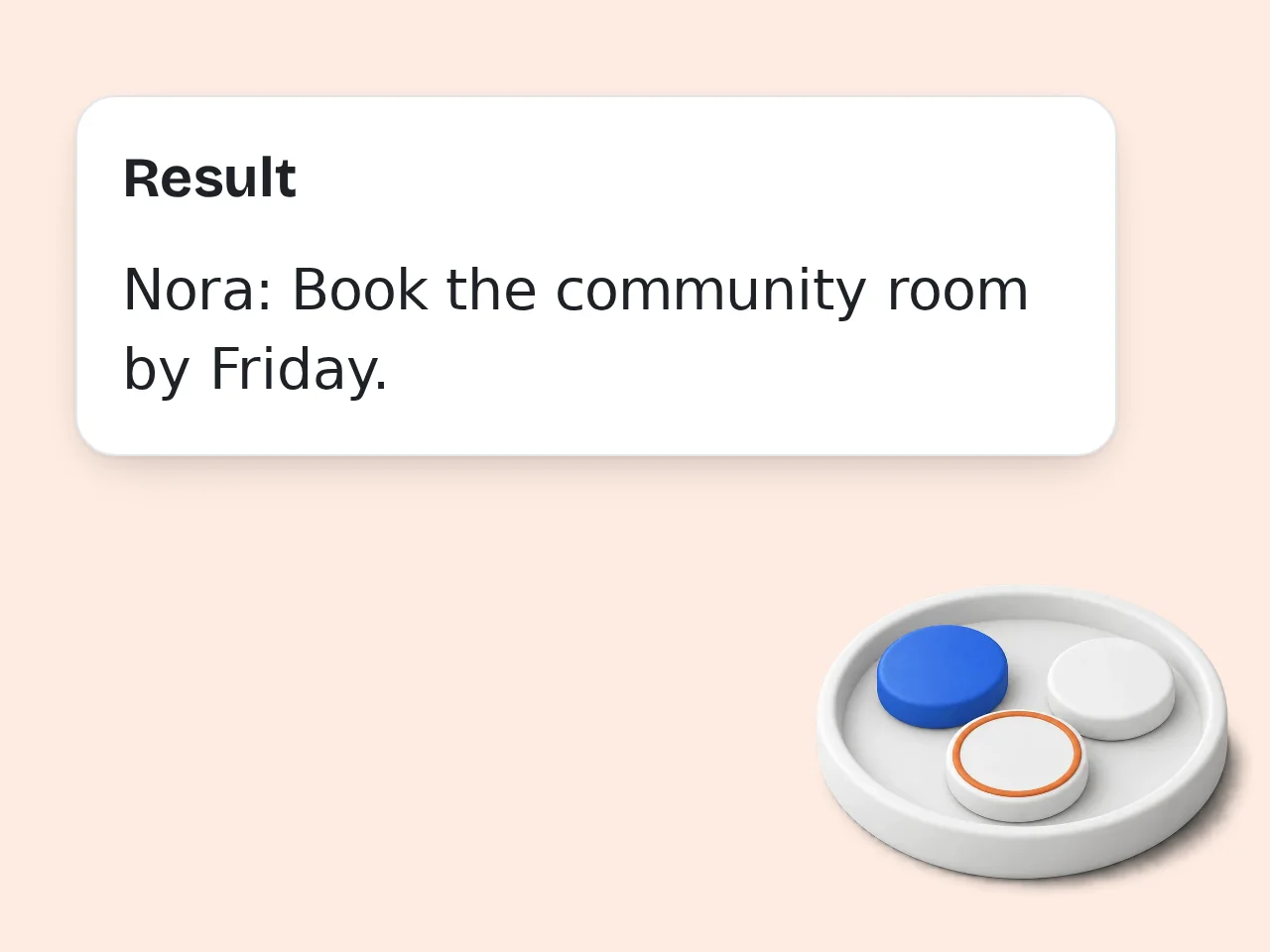
Generate and copy your bullet points
Click generate and the bullet point maker returns a clean, readable list. Copy the bullet points directly into your doc, presentation, email, CRM, or resume draft.
Key Features of Bullet Point Maker
Everything needed to turn raw text into useful bullet points
5 Real-World Bullet Modes
Use the bullet point maker for summaries, slide bullets, resume bullets, meeting notes, or action items. Each mode changes the structure so the output fits the job.
Tone and Detail Controls
Choose a clear, professional, persuasive, concise, or friendly tone, then set short, balanced, or detailed output. The bullet point maker does the prompt work for you.
Copy-Ready Bullet Point Output
Get clean bullet points that are easy to paste into Google Docs, PowerPoint, Notion, email drafts, and resumes. No long cleanup pass needed after generation.
Frequently Asked Questions about Bullet Point Maker
Common questions about using a bullet point maker
What is a bullet point maker and how does it work?
A bullet point maker turns full sentences, messy paragraphs, or rough notes into a clean list of bullet points. It keeps the main meaning, removes filler, and rewrites the text so each point is faster to scan. You paste the source text, choose the goal and tone, then the tool reorganizes the content into short, readable bullets. That makes it useful for slides, summaries, meeting notes, and quick briefs. Instead of manually trimming every sentence, you get a structure that is already ready to copy, edit, and share.
How do I use the bullet point maker to get the best results?
Start with source text that already contains the facts you want to keep. A bullet point maker works best when you paste a full paragraph, meeting recap, or draft explanation instead of just a vague topic line. Then pick the right mode. Summary bullets work well for study notes, presentation bullets fit slide decks, and resume bullets focus on achievements and impact. Tone and detail settings make a visible difference too. If you want stronger output, add a focus note like benefits, metrics, customer impact, or next steps so the tool knows what to emphasize.
Is this bullet point maker free to use?
Yes, this bullet point maker is free to use. Guests get limited daily free tries without creating an account, and free registered users have a monthly credit allowance. The free version still includes the main controls, including tone, goal, detail level, and output language. That is enough for quick summaries, meeting bullets, and one-off presentation work. If you need higher limits for heavier daily use, a subscription plan is the better fit, but casual users can get real value without paying. See the pricing page for current details.
How many times can I use the bullet point maker each day?
Guests get limited daily free tries of the bullet point maker without logging in. Free registered users have a monthly credit allowance, which covers regular school, work, and writing tasks. That means you can use it for a few meeting recaps this week, some slide bullets next week, and a resume refresh later in the month without burning through access too fast. Subscribers get much higher limits, so the tool can stay in a daily workflow instead of only occasional use. See the pricing page for current details.
Can I use the bullet point maker without creating an account?
Yes, you can use the bullet point maker without signing up. Paste your text, choose the settings you want, and generate the bullet points right away as a guest. A free account mainly helps if you want more monthly usage and a more consistent place to return to. It is useful, but it is not required for testing the tool or handling quick tasks. If you only need a fast conversion from paragraph to bullet list, guest access is enough to get started.
What can I use a bullet point maker for?
A bullet point maker is useful for far more than generic summaries. It can turn meeting notes into takeaways, rewrite product text into slide bullets, convert rough writing into action items, and tighten long explanations for internal docs. Many people also use a bullet point generator before building presentations, email briefs, knowledge-base updates, project plans, and interview prep notes. The same source text can be reshaped for different audiences in seconds. If the goal is clearer structure and faster reading, bullet points usually beat a wall of text.
Does the bullet point maker support resume bullet points too?
Yes, the bullet point maker includes a resume-focused mode, and that is where a lot of users get the most value. It rewrites plain job descriptions or messy drafts into stronger accomplishment-style bullets. A resume bullet point generator works best when the source text includes action, scope, and results. For example, numbers, time savings, growth metrics, or ownership details help the output sound sharper and more credible. If you are updating LinkedIn or a CV, this mode saves time because it starts from achievement language instead of generic description language.
What kind of output quality should I expect from a bullet point generator?
You should expect bullet points that are cleaner, shorter, and easier to scan than the original text. A good bullet point generator does not just chop sentences apart, it reorganizes the information into a clearer order. The strongest output usually comes from source text with real detail. If the input includes outcomes, steps, or key facts, the generated bullets can be surprisingly polished and close to final-use quality. Most people still make small edits for voice or preference, but the heavy cleanup work is already done.
Why use a bullet point maker instead of doing it manually?
Manual bullet writing is fine for a short paragraph, but it gets slow when the source text is long, repetitive, or messy. A bullet point maker reduces that cleanup time and gives you structure immediately. That speed matters when you are turning notes into slides, updating project recaps, or preparing a resume on a deadline. Instead of rewriting each line by hand, you start with a workable list and polish only what matters. The tool is not replacing judgment. It is removing formatting friction and saving attention for the final decisions.
Why use this bullet point maker instead of asking ChatGPT directly?
ChatGPT can create bullet points, but a dedicated bullet point maker is faster when you want repeatable output. The form already includes the common controls like purpose, tone, bullet length, and output count. That means you do not need to write a prompt from scratch every time or remember how to phrase instructions for resumes, meeting notes, or slide decks. The structure is built in, so results are more consistent across repeated tasks. For people doing the same kind of formatting work again and again, that consistency is the real advantage.
How can I get better results from an AI bullet point generator?
The easiest way to improve output is to paste richer source text. A vague sentence gives a vague bullet list, but a concrete paragraph with specifics gives the AI bullet point generator much more to work with. It also helps to choose the right purpose and tone. If you want resume bullets, use the resume mode. If you want a slide deck, use presentation mode and keep the detail setting short or balanced. When results still feel too broad, add a focus note like emphasize metrics, highlight customer value, or pull out next steps.
What if the bullet point maker output is not what I expected?
If the bullet point maker misses the mark, the first thing to check is the input. Thin or messy text often leads to flat bullets because the tool cannot invent missing facts or intent. Next, review the goal and tone settings. A summary mode will sound different from resume mode, and concise bullets will feel different from detailed bullets even with the same source text. Usually the fix is simple: paste a better source paragraph, adjust the purpose, and regenerate. One quick retry often produces a much better result.
Still have questions?
Contact our support teamReady to Make Better Bullet Points?
Paste your text, pick a style, and get clear bullet points in seconds.