AI Meeting Minutes Generator
Turn rough notes into polished meeting minutes in seconds
How to Use the AI Meeting Minutes Generator
Take meeting minutes from raw notes to polished document in 3 steps
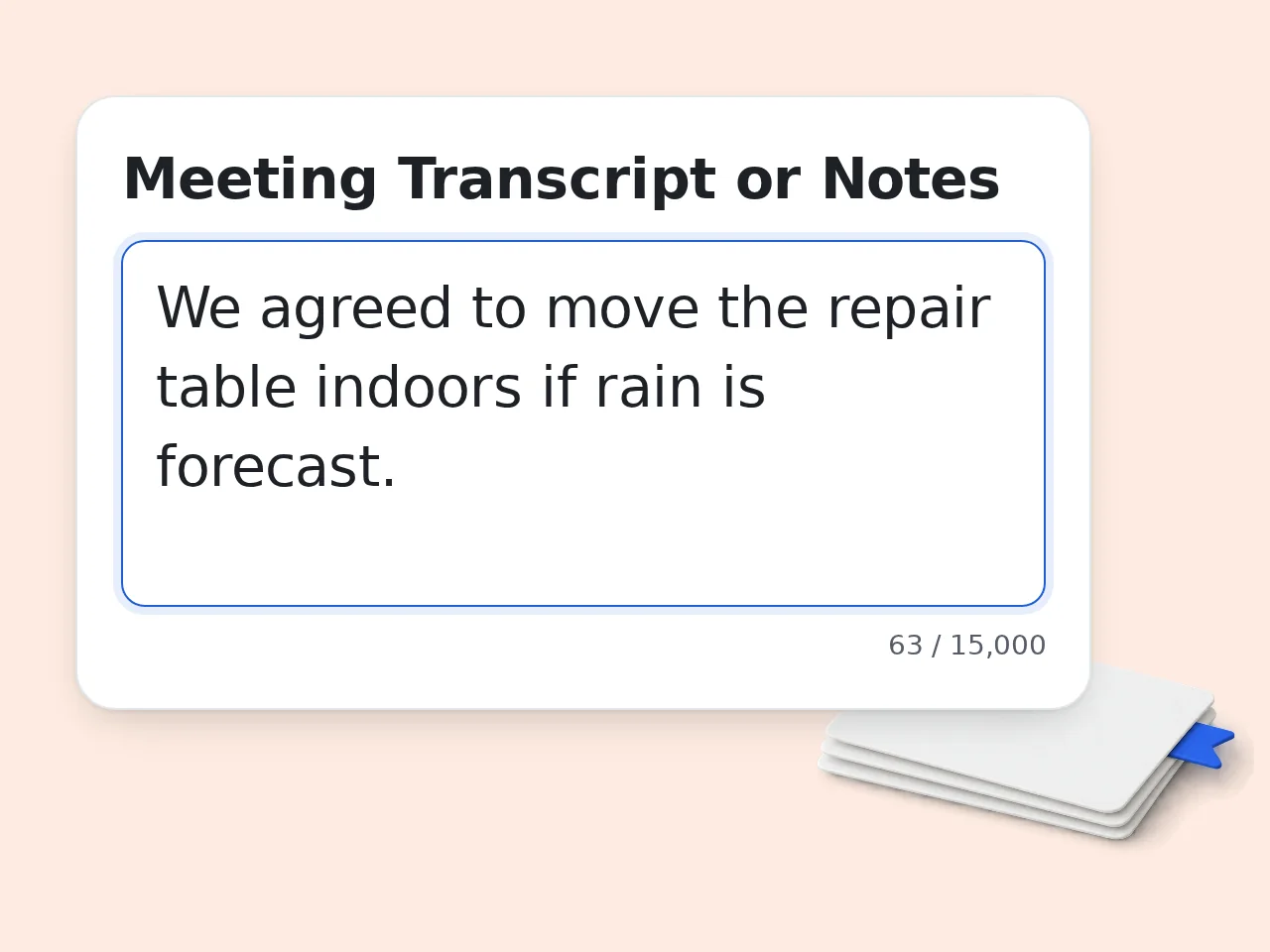
Paste your notes or transcript
Drop in your meeting transcript, rough notes, or any text from the meeting. The AI handles messy, incomplete, or unstructured input—no reformatting required.
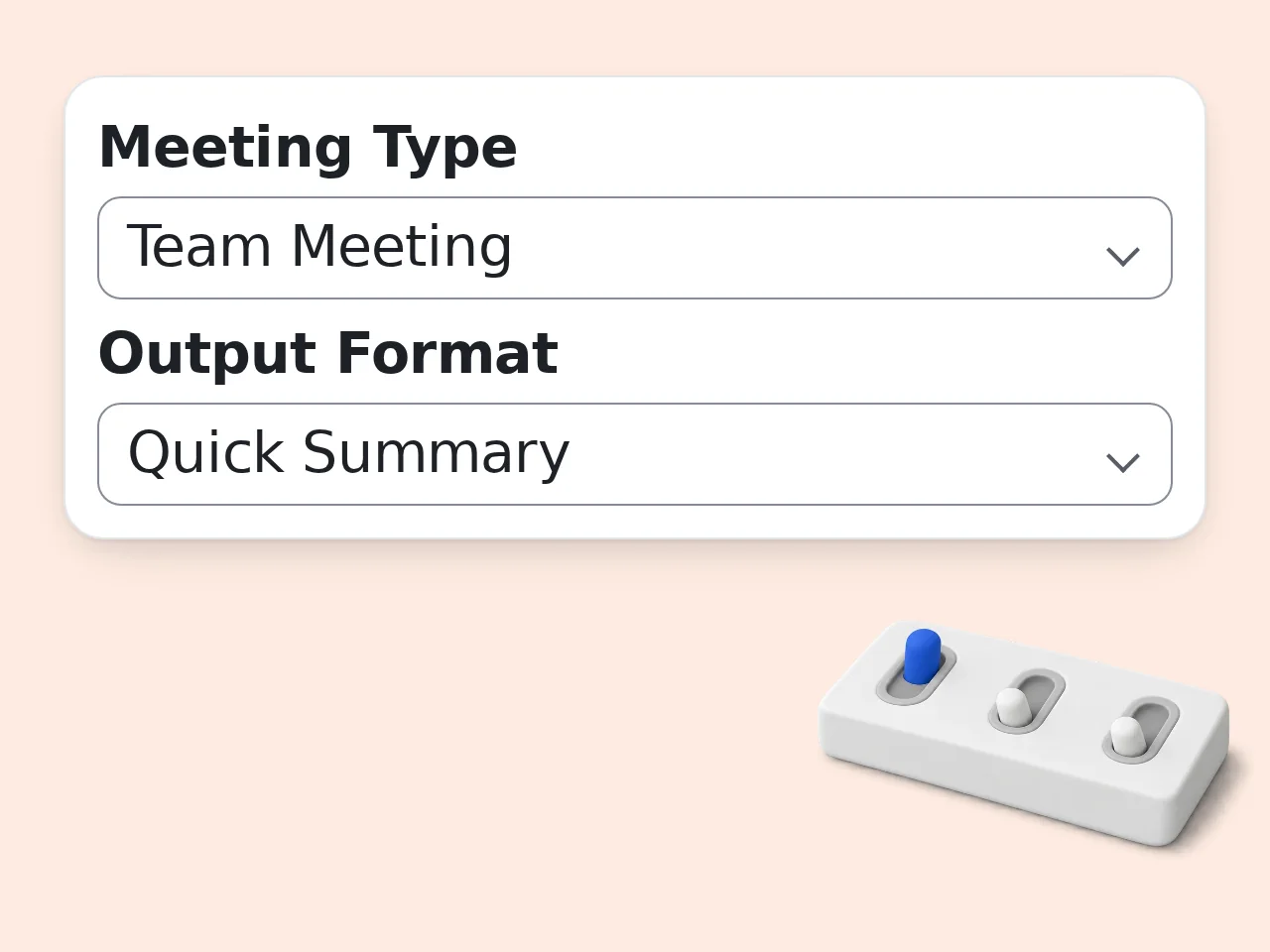
Select meeting type and format
Choose the meeting type (team, client, project, etc.) and pick your preferred output format. Add attendee names and meeting date if you want them included.
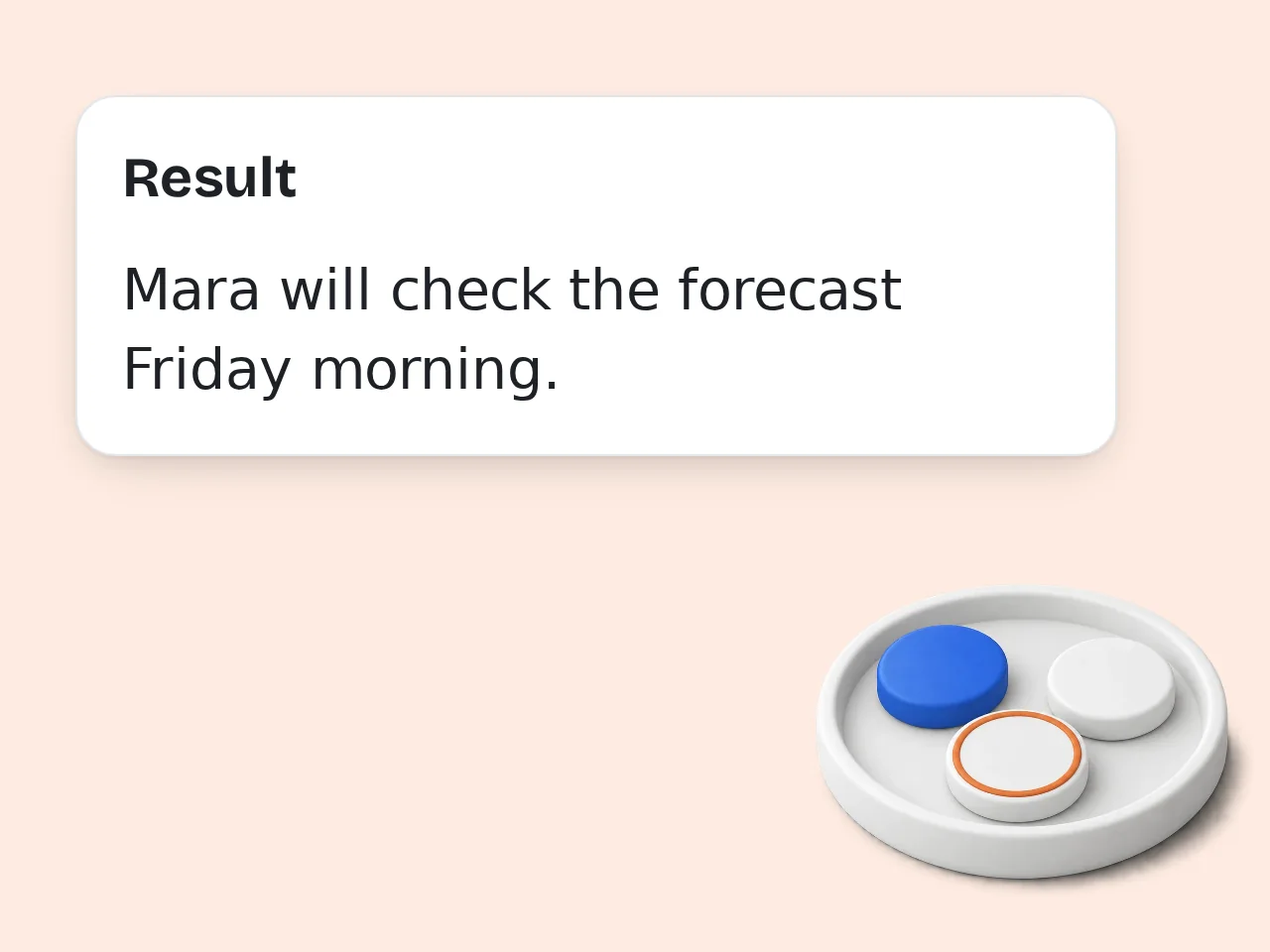
Get your meeting minutes instantly
Click generate and receive complete, structured meeting minutes with decisions, action items, and discussion points clearly organized. Copy or save right away.
Key Features of the AI Meeting Minutes Generator
Everything you need to take meeting minutes and turn them into useful documents
3 Output Formats in One Tool
Choose formal structured minutes, a quick bullet-point summary, or a detailed report. Each format is optimized for different audiences and use cases.
Auto-Extracted Action Items
Every decision and follow-up task gets pulled out automatically. Action items are listed with owners and deadlines when mentioned in your notes.
6 Meeting Types Supported
From team standups to client meetings and job interviews—the tool adapts its structure and focus based on the meeting context you select.
Frequently Asked Questions About Taking Meeting Minutes
Common questions about AI meeting minutes answered
What is an AI meeting minutes generator and how does it work?
An AI meeting minutes generator converts raw meeting notes or transcripts into formatted, professional documents. You paste your unstructured text and the AI identifies key sections—agenda, decisions, action items—and organizes them. The tool analyzes your input for meeting patterns: who said what, what was decided, and what needs to happen next. It then formats everything according to the output style you choose. No special formatting is required on your end. Even messy, shorthand notes work fine as input.
How do I take effective meeting minutes using this tool?
The best approach is to capture notes during the meeting—even rough ones—then run them through the AI immediately after. Focus on jotting down decisions made, tasks assigned, and key discussion points. You don't need complete sentences. Abbreviations, bullet fragments, or even a messy stream of notes work well. The AI fills in the structure. For best results, note attendee names and who was assigned each task. The action item table becomes much more useful with clear owners.
Is the meeting minutes generator free to use?
Yes, the AI meeting minutes generator is completely free. Guests can use it without any account and get limited daily free tries, and free registered users have a monthly credit allowance. All core features—formal minutes, quick summaries, action item extraction, and 6 meeting types—are available at no cost. Subscription plans are available if you need higher limits or advanced features. See the pricing page for current details.
How many times can I use the meeting minutes tool per day?
Without an account, guests get limited daily free tries for generating meeting minutes. Free registered users have a monthly credit allowance, which covers most regular meeting schedules. Subscribers get much higher limits with no daily restrictions on standard use. If you run large volumes of meeting minutes regularly, a subscription plan is the most practical option. See the pricing page for current details.
Can I use the meeting minutes generator without creating an account?
Yes, no account is needed to get started. Visit the page, paste your notes, and generate minutes immediately—the full tool works without registration. Creating a free account unlocks a higher monthly usage limit and lets you access your generation history. Guests and free users both have access to all meeting types, output formats, and tone options.
What kind of input can I use for taking meeting minutes?
The tool accepts any text-based meeting content: full transcripts, shorthand notes, bullet-point jottings, or even stream-of-consciousness notes written during a call. You can include speaker labels ("John: decided to move deadline"), rough timestamps, or simply a wall of text. The AI parses all of these effectively. The longer and more detailed your input, the richer the output. But even 5–10 lines of notes produce useful structured minutes.
What does the action items section include?
The action items section lists every task, follow-up, and commitment mentioned in your notes. Each item is formatted as a clear task description with an assigned owner and deadline when that information is available. If your notes say "Tom needs to send the report by Friday," the action item table will show the task, Tom as owner, and Friday as the deadline. Tasks without clear owners get listed with "[Owner TBD]" so nothing falls through the cracks.
Why use this tool instead of writing meeting minutes manually?
Writing meeting minutes manually takes 15–30 minutes on average after a meeting. The AI generates the same result in under 30 seconds from the notes you already took. Manual minutes also risk missing decisions made in passing or forgetting who was assigned which task. The AI catches everything in the text systematically. You still review and edit the output—but you start from a complete draft rather than a blank page.
How is this different from just asking ChatGPT to write meeting minutes?
This tool is purpose-built for meeting minutes with dedicated input fields for meeting type, attendees, format, and tone. ChatGPT requires you to explain all of this in your prompt each time. The structured output—with action item tables, decision lists, and proper sections—is enforced by the tool. With a general AI, formatting varies depending on how you phrase the request. For one-off use, ChatGPT works fine. For a repeatable, consistent workflow, a dedicated meeting minutes tool saves time and produces more reliable output.
What meeting types does the generator support?
The tool supports six meeting types: team meetings, project meetings, client meetings, brainstorming sessions, job interviews, and general meetings. Each type adjusts the output focus. Client meeting minutes emphasize commitments and next steps; interview minutes capture candidate responses and evaluation notes; project meetings focus on milestones and blockers. Selecting the right type produces minutes that match your actual meeting context rather than a generic format.
Can I get better results by improving my input notes?
Yes, input quality directly affects output quality. The more context you provide, the more accurate and complete the minutes will be. Useful additions: mention attendee names, note when a decision was reached versus still under discussion, and flag any urgent action items explicitly. For longer or complex meetings, break your notes into rough sections (by agenda item) before pasting. This helps the AI structure the output more accurately.
What if the generated meeting minutes miss something important?
If key information is missing from the output, it likely wasn't captured clearly in your input notes. Add the missing detail to your notes and regenerate—the AI incorporates all text provided. For information that was discussed but not written down, you can manually add it to the generated document after copying. Think of the AI output as a strong first draft, not the final version. Frequently missed items include informal agreements and offhand comments—make it a habit to note these explicitly during the meeting.
Still have questions?
Contact our support teamStop Dreading Meeting Minutes
Paste your notes and get structured minutes in under 30 seconds.