AI Excel Formula Generator
Turn plain English into ready-to-use Excel and Google Sheets formulas
How to Use AI Excel Formula Generator
Get your formula in 3 simple steps
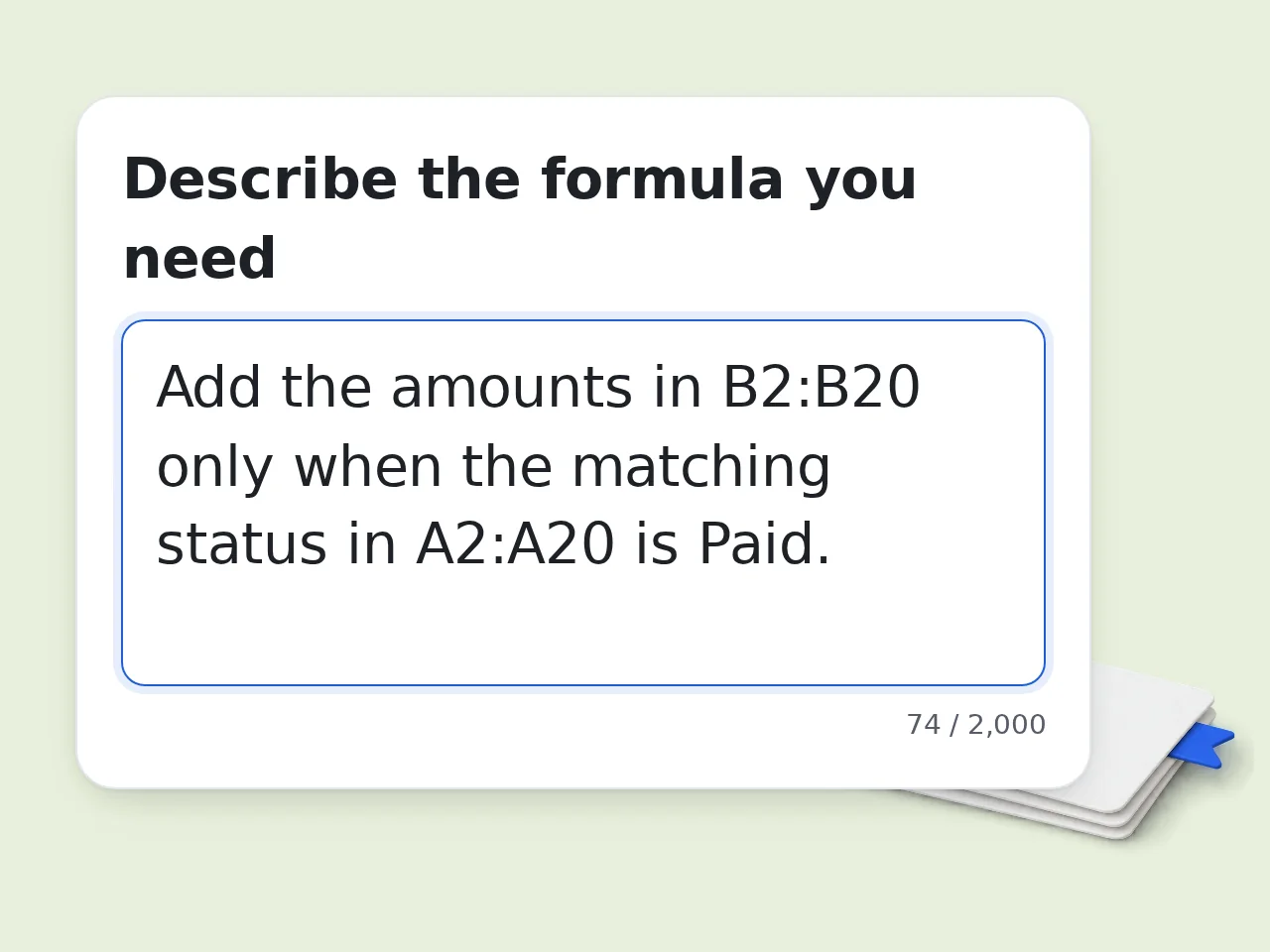
Describe Your Calculation
Type what you need in plain English — for example, 'average of column B where column A is greater than 100.' The AI excel formula generator handles the rest.
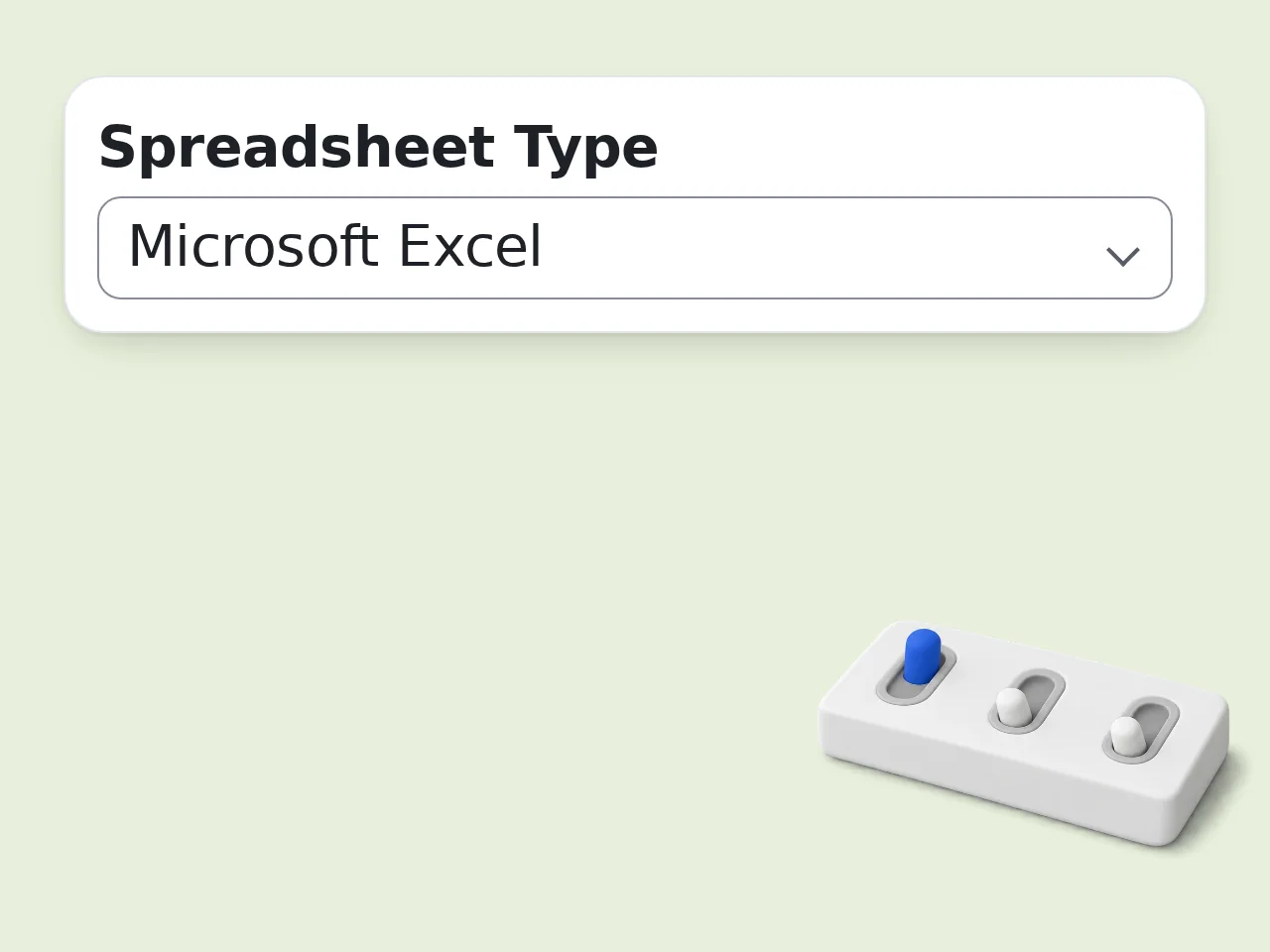
Pick Your Spreadsheet Type
Select Microsoft Excel or Google Sheets. The formula generator adapts function names and syntax to match your platform.
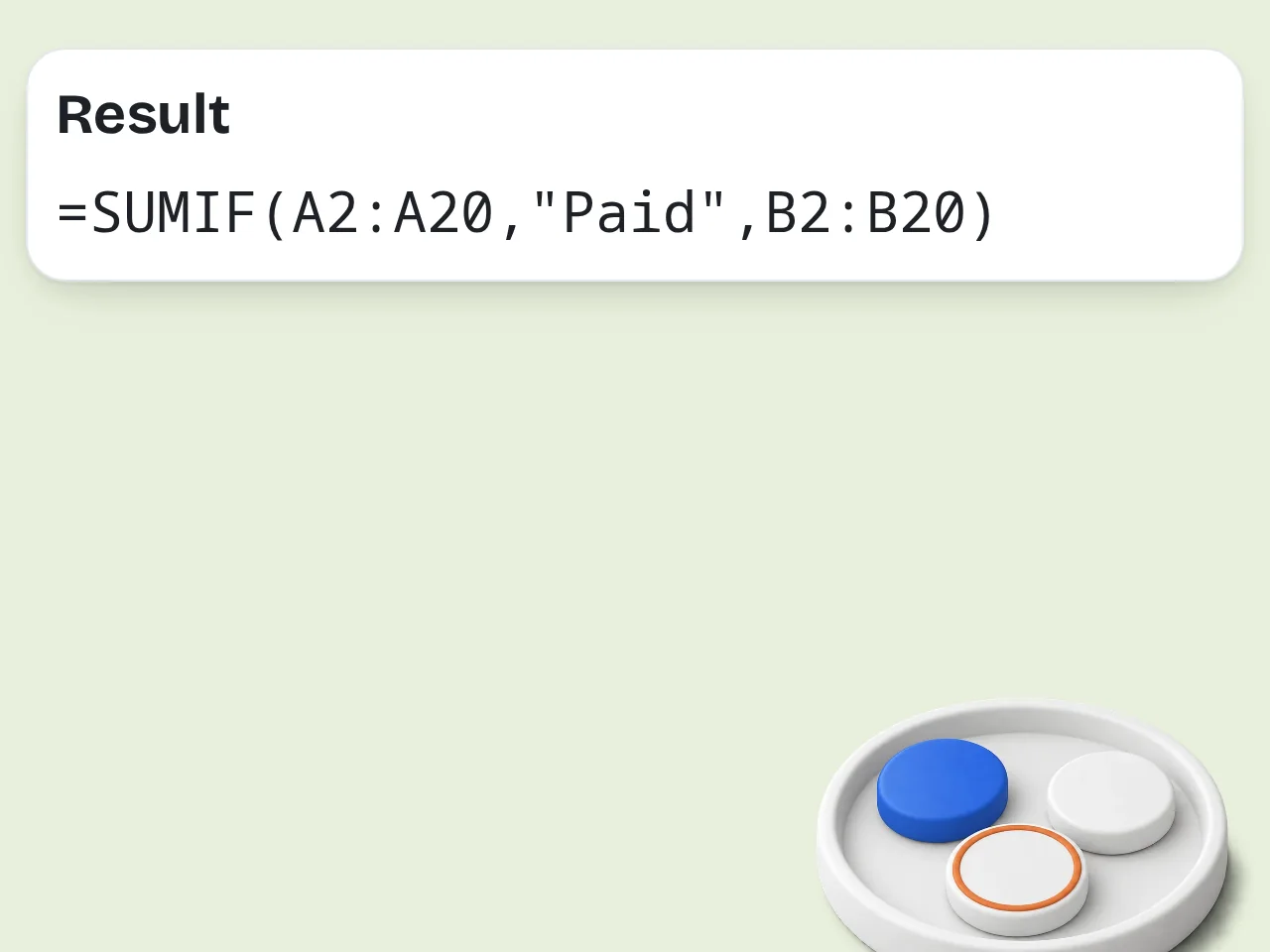
Copy the Formula and Use It
Get the generated excel formula with an explanation. Paste it directly into your spreadsheet — done.
Key Features of AI Excel Formula Generator
Everything you need to create spreadsheet formulas in one place
Plain English to Excel Formula Conversion
Type what you want to calculate in normal words. The AI excel formula generator translates it into correct syntax for VLOOKUP, SUMIFS, INDEX/MATCH, and 400+ other functions.
Excel and Google Sheets Support
Switch between Microsoft Excel and Google Sheets with one click. The formula generator adjusts syntax differences automatically — XLOOKUP, TEXTJOIN, FILTER, and more.
Step-by-Step Formula Breakdown
Choose formula-only, brief, or detailed explanations. Detailed mode walks through each function and argument so you understand the logic, not just copy-paste.
Frequently Asked Questions about AI Excel Formula Generator
Common questions answered about the excel formula generator
What is an AI Excel formula generator and how does it work?
An AI Excel formula generator converts plain-language descriptions into working spreadsheet formulas. You type something like 'sum column A when column B equals Marketing,' and it outputs =SUMIF(B:B,"Marketing",A:A) instantly. The tool recognizes 400+ Excel and Google Sheets functions including VLOOKUP, INDEX/MATCH, XLOOKUP, SUMIFS, and array formulas. It picks the most efficient approach based on your description. No formula syntax knowledge needed — just describe what you want to calculate and the AI handles the rest.
How do I use the AI Excel formula generator to get accurate results?
Write your request in clear, specific language. Mention column letters, conditions, and what you want calculated — for example, 'count rows in column C where value is above 500 and column D is not empty.' The more detail you provide, the more precise the formula. Include cell ranges, conditions, and expected output format when possible. Use the formula category filter if you already know you need a lookup, date, or logical formula. It helps the generator narrow down the right functions faster.
Is the AI Excel formula generator free to use?
Yes, the AI Excel formula generator is completely free. Guests get limited daily free tries without creating an account. Free registered users have a monthly credit allowance. All features are available at no cost — Excel and Google Sheets support, formula categories, and all explanation levels. No credit card required. Subscription plans exist for users who need higher limits or access to advanced AI models for complex formula generation. See the pricing page for current details.
How many formulas can I generate per day with the excel formula generator?
Without an account, you get limited daily free tries. Creating a free account gives you a monthly credit allowance — more than enough for most spreadsheet tasks. Subscribed users get significantly higher limits with no daily cap. The exact allocation depends on your plan level. For occasional use, the free tier handles most needs. Power users who build formulas daily benefit from a subscription. See the pricing page for current details.
Can I use the excel formula generator without creating an account?
Yes. The AI Excel formula generator works immediately — no signup, no email, no login required. Just type your description and get a formula. Guests get limited daily free tries compared to registered users, who have a monthly credit allowance. But all features are fully accessible. Creating a free account takes 30 seconds and unlocks higher usage limits if you need more generations. See the pricing page for current details.
Does the AI Excel formula generator support Google Sheets formulas?
Yes. Select 'Google Sheets' from the spreadsheet type dropdown and the generator outputs Google Sheets-compatible syntax. Functions like IMPORTRANGE, ARRAYFORMULA, and QUERY are fully supported. The tool automatically adjusts for differences between Excel and Sheets — for example, TEXTJOIN delimiter handling, XLOOKUP availability, and array formula behavior. You can switch between Excel and Google Sheets at any time without re-entering your description.
Why use the AI Excel formula generator instead of asking ChatGPT?
This formula generator is purpose-built for spreadsheets. It validates function names, checks syntax compatibility between Excel and Google Sheets, and formats output with proper code blocks and explanations. ChatGPT handles general questions but sometimes invents non-existent Excel functions or confuses Excel and Sheets syntax. A dedicated formula generator reduces those errors. The streamlined interface — with spreadsheet type, formula category, and explanation level controls — gets you accurate formulas faster than typing a prompt from scratch.
What types of Excel formulas can the AI generator create?
The generator covers all major formula categories: lookup and reference (VLOOKUP, XLOOKUP, INDEX/MATCH), math and statistics (SUMIFS, AVERAGEIF, STDEV), text manipulation (LEFT, MID, TEXTJOIN), date and time (DATEDIF, NETWORKDAYS), and logical functions (IF, IFS, SWITCH). It also handles nested formulas combining multiple categories — for example, an IF statement wrapping a VLOOKUP with a date calculation. Array formulas, dynamic arrays, and modern Excel 365 functions like FILTER, SORT, and UNIQUE are all supported.
How much faster is the AI Excel formula generator compared to writing formulas manually?
Most formulas generate in under 5 seconds. A complex nested formula that might take 10-20 minutes to research and write manually — looking up syntax, testing combinations, fixing errors — comes out instantly. The time savings compound with complex formulas. A SUMPRODUCT with multiple conditions or a nested INDEX/MATCH that typically requires trial and error is generated correctly on the first try. The detailed explanation mode also saves learning time. Instead of searching help docs, you get the formula plus a breakdown of every component.
Can I use the AI Excel formula generator for complex nested formulas?
Yes. The generator handles deeply nested formulas — IF inside VLOOKUP, INDEX/MATCH with multiple criteria, SUMPRODUCT with conditional arrays, and more. Describe the logic in plain language and it builds the nesting structure. For very complex requests, use the detailed explanation mode. It breaks down each layer of the nested formula so you can verify the logic matches your needs. If the first result isn't quite right, refine your description with more specific conditions. The AI adjusts the formula based on additional context.
How can I get better results from the AI Excel formula generator?
Be specific with column references and conditions. Instead of 'calculate total sales,' write 'sum column D where column A is 2024 and column B is not blank.' Concrete details produce accurate formulas. Use the formula category selector when you know the function type. Selecting 'Lookup & Reference' for a search task helps the AI choose between VLOOKUP, XLOOKUP, and INDEX/MATCH. Always verify the generated formula with a small test dataset before applying it to your full spreadsheet.
What should I do if the generated Excel formula doesn't match my needs?
Rephrase your description with more detail. Add specific column letters, row ranges, conditions, and expected output. For example, change 'find duplicates' to 'highlight cells in column A that appear more than once.' Check whether you selected the right spreadsheet type. A formula built for Excel might not work in Google Sheets if it uses Excel-only functions like XLOOKUP. Switch the explanation level to 'Detailed' to see each component explained. This helps you spot which part of the formula needs adjustment and modify it yourself.
Still have questions?
Contact our support teamReady to Generate Your Excel Formula?
Type what you need, get the formula instantly